
How do I access Preview Generator for a single document?
|
How do I access Preview Generator for a single document? |
|
| 1. Login to your account using the username and password provided. | 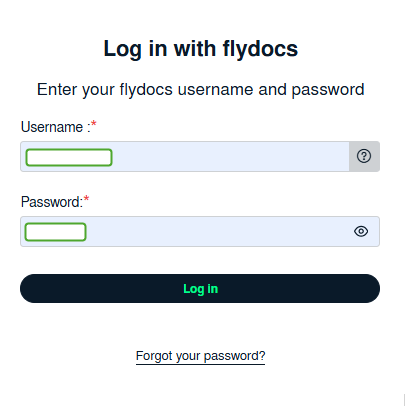 |
| 2. Hover over the Fleet Management tab and click on Engine Centre option. | 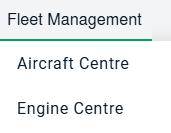 |
| 3. Click on Engine Module Fleet tab. | 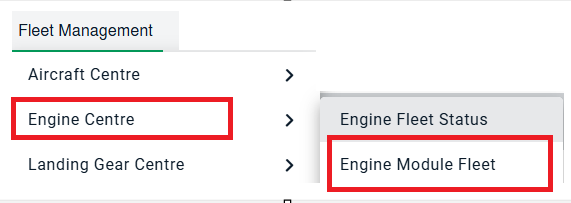 |
| 4. Select the asset from the grid. | 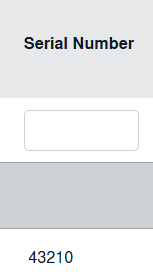 |
| 5. Hover over the Maintenance Status button and Click on the Engine Module History button. It will open new window. NOTE: The Maintenance Status button will become active once an engine record has been selected. |
 |
| 6. Select Year View, BOX View, MCC View or Delivery Bible View. |  |
| 8. Click on the Open Folder. It will open a new window. |  |
|
9. Go to document for which you want to change Preview and Click on Preview icon. It will generate Preview into new window. |
 |
| 10. It will show you different preview images. Select image that you want to put as a Preview. | 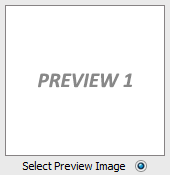 |
| 11. Click on SAVE button to save your Preview. |  |
| 12. It will give you pop up message of "Preview image saved successfully". |  |