
How do I Add, Edit and Archive User?
| How do I add a User? | |
| 1. Login to your account using the username and password provided. | 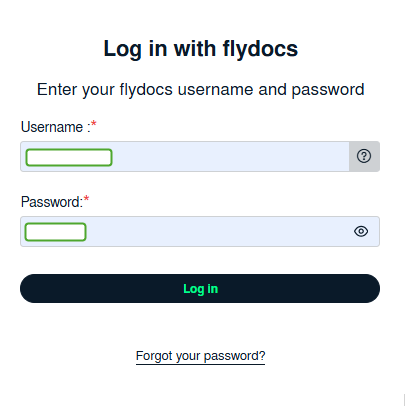 |
| 2. Hover over the User Management tab and click on Users option. | 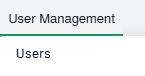 |
| 3. Click the ADD button from the middle of the page. |  |
|
4.Fill in the highlighted fields. Note : Mandatory fields i.e., User Level(Main Client User, External Engineer), First Name, Email Address, Status, Username, Client Name, Last Name, Group Rights, Responsibilities, Department. |
 |
| 5. Click on the SAVE button to update any changes made. |  |
| How do I edit a User? | |
| 1. Login to your account using the username and password provided. | |
| 2. Hover over the Users tab and Click on Users Tab. | |
| 3. Click the User from the grid. The row will become highlighted once selected. | 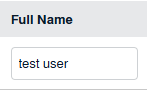 |
| 4. Click on EDIT button |  |
| 5. Modify any of the required fields. |
|
| 6. Click on the SAVE button to update any changes made. | |
| How do I Archive User/s? |
|
| 1. Login to your account using the username and password provided. | |
| 2. Hover over the Users tab and Click on Users Tab. | |
| 3. Click the User from the grid. The row will become highlighted once selected. Note : You can select Any number of Users to archive at one go. |
|
| 4. Click on the ARCHIVE button. |  |
| 5. It will open a pop up message. Click on OK button. |  |