How do I download boxes/folders?
| 1. Login to your account using the username and password provided. | |
| 2. Hover over the Fleet Management tab and Click on APU Centre Tab. |   |
| 3. Select the APU you would like to view by clicking on the row in the table. The row will become highlight once selected. |  |
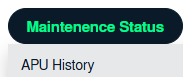
| 4. Hover over the Maintenance Status button and Click on the APU History button. It will open new window. NOTE: The Maintenance Status button will become active once an APU record has been selected. |
 |
| 5. To Download two or more Boxes/Folders scroll down to the Boxes/Folder to be selected and tick the box labelled Manage Documents. |
|
| 6. Go to mange documents and click on Download to PC. |   |
| 7. It will send a download link to your email to download the folder |