
How do I edit a row?
| 1. Login to your account using the username and password provided. | |
| 2. Hover over the Fleet Management tab. |  |
| 3. Click on Document management Centre in the drop-down. |  |
| 4. Select Manage Internal documentation. |  |
| 5. Filter and Click the VIEW button. |  |
| 6. Click on the view image of the row to view inner documents. |  |
| 7. Right-click on the row which you wish to Edit and select the option Edit Row | 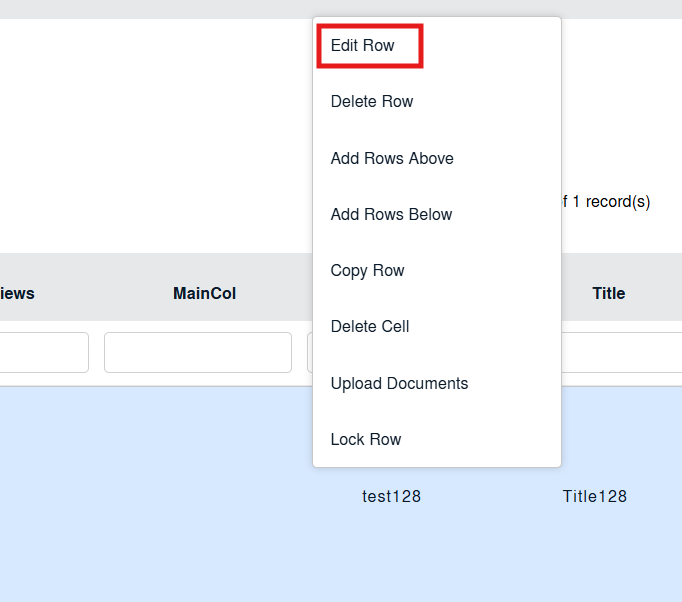 |
| 8. We can Edit that row with the inline option. | 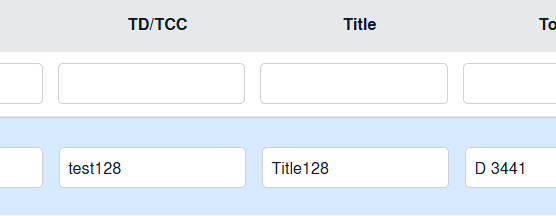 |
| 9. Click on the save the image at the right-side end of the row to save the update that you make. |  |
| 10. Getting a pop-up message that "Row Updated successfully" |  |