
How do I get PDF URL?
| 1. Login to your account using the username and password provided. | |
| 2. Hover over the Fleet Management tab then Hover over the Engine Centre tab and Click on Engine Fleet Status tab. | 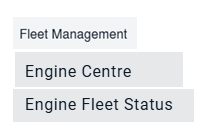 |
| 3. Scroll down and select record you wish to view. | 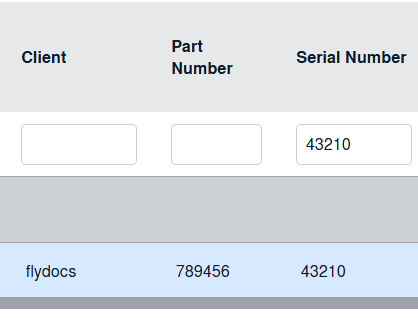 |
| 4. Hover over Current Status and Select any tab from dropdown. It will open new window. | 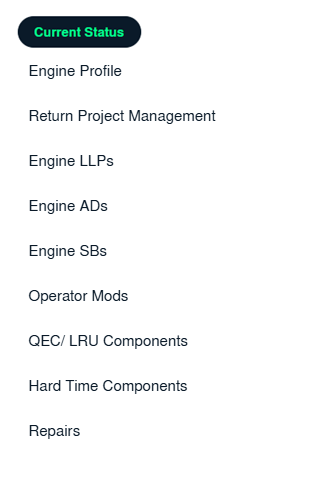 |
| 5. Click on view icon of a particular row to view the document page. |  |
| 6. In the new window, go to the document for which you want to get PDF URL. Click on Get PDF URL icon which is available below that document. |  |
| 7. It will open popup below that icon. You can copy URL to clipboard, or you can directly mail this URL. | 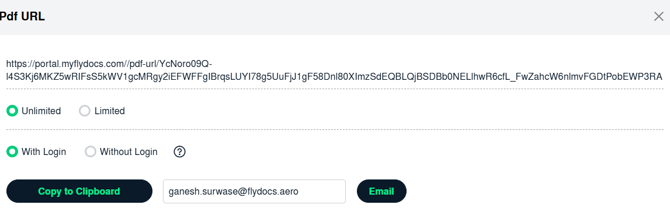 |
| 8. The expiry of the URLs can also be managed by the below options. Note: If "Limited" is selected, you will have option to enter no. of days the link should be valid for. We can enter Minimum 1 day or Maximum 99 days. |
 |
| 9. We have two more options to secure the generated URL. 1. With Login: The receiver needs to have a login of FLYdocs to access the URL. 2. Without Login: The URL will be accessible without any need of logging into FLYdocs. |
 |
| 10. You will have option to add the Email ID to send the PDF link directly to that particular Mail ID. |  |