
How do I manage documents in Current Status Search of Aircraft Centre?
|
How do I merge documents? |
|
| 1. Login to your account using the username and password provided. | 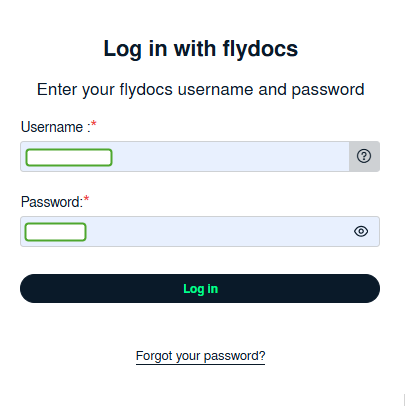 |
| 2. Hover over the Fleet Management tab and Click on Aircraft Centre Tab. | 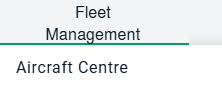 |
| 3. Select the record from the grid. | 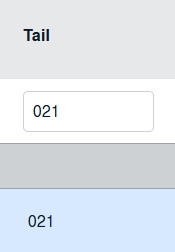 |
| 4. Hover over Current Status and Select any tab from dropdown. It will open new window. | 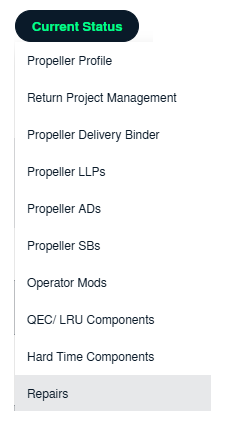 |
| 5. Click on the SEARCH button. It will open a new window. |  |
| 6. Insert the required keyword(s). |  |
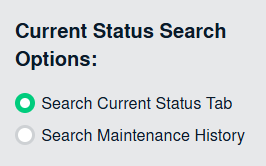
| 7. Select any one option from below. 1) Search Current Status Tab (This option will search documents available into Current Status) 2) Search Maintenance History Tab (This option will search documents available into Maintenance History) |
 |
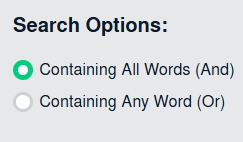
| 8. Select any one option from below. 1) Containing All words (And) 2) Containing Any word (Or) |
 |
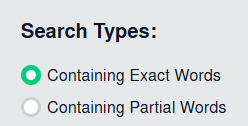
| 9. Select any one option from below. 1) Containing Exact Words 2) Containing Partial Words |
 |
| 10. Set Deleted Options and Search Category for make more option to make search. | 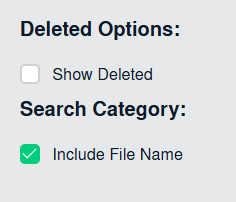 |
| 11. Click on the SEARCH button. The results will appear at the bottom of the page. |  |
| 12. To Merge documents, Select two or more than two documents by ticking tickbox shown infront of title of document. | 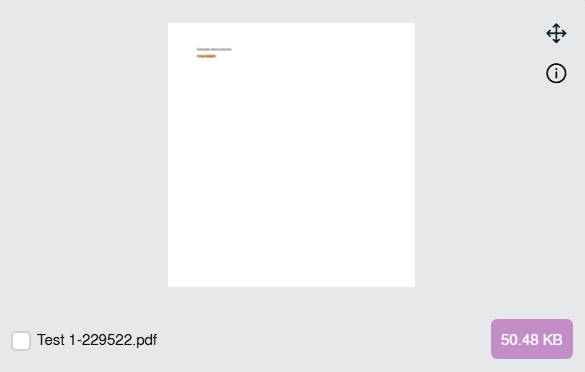 |
| 13. Click on the Manage Documents Icon. |  |
| 14. Click on the Merge option | 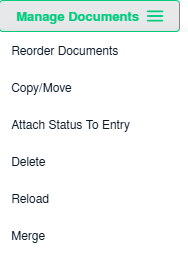 |
| 14. Enter file Name that you want to give to document. | 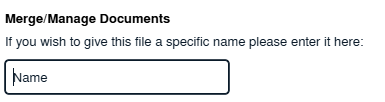 |
| 15. Click on MERGE FILES button. |  |
|
How do I download split documents to PC? |
|
| 1. Login to your account using the username and password provided. | |
| 2. Hover over the Fleet Management tab and Click on Aircraft Centre Tab. | |
| 3. Select the record from the grid. | |
| 4. Hover over Current Status and Select any tab from dropdown. It will open new window. | |
| 5. Click on the SEARCH button. It will open a new window. | |
| 6. Insert the required keyword(s). | |
| 7. Select any one option from below. 1) Search Current Status Tab (This option will search documents available into Current Status) 2) Search Maintenance History Tab (This option will search documents available into Maintenance History) |
|
| 8. Select any one option from below. 1) Containing All words (And) 2) Containing Any word (Or) |
|
| 9. Select any one option from below. 1) Containing Exact Words 2) Containing Partial Words |
|
| 10. Set Deleted Options and Search Category for make more option to make search. | |
| 11. Click on the SEARCH button. The results will appear at the bottom of the page. | |
| 12. Select document that you want to Split. | |
| 13. Click on the Manage Documents Icon. | |
| 14. Click on the Split option | 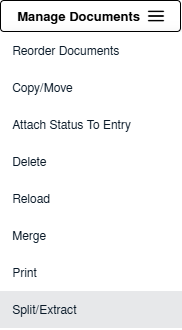 |
| 14. Hover over the SPLIT ALL PAGES button and Click on "Download to PC" option. It will allow you to download zip file. |
|

|
How do I save split documents directly to the respective row? |
|
| 1. Login to your account using the username and password provided. | |
| 2. Hover over the Fleet Management tab and Click on Aircraft Centre Tab. | |
| 3. Select the record from the grid. | |
| 4. Hover over Current Status and Select any tab from dropdown. It will open new window. | |
| 5. Click on the SEARCH button. It will open a new window. | |
| 6. Insert the required keyword(s). | |
| 7. Select any one option from below. 1) Search Current Status Tab (This option will search documents available into Current Status) 2) Search Maintenance History Tab (This option will search documents available into Maintenance History) |
|
| 8. Select any one option from below. 1) Containing All words (And) 2) Containing Any word (Or) |
|
| 9. Select any one option from below. 1) Containing Exact Words 2) Containing Partial Words |
|
| 10. Set Deleted Options and Search Category for make more option to make search. | |
| 11. Click on the SEARCH button. The results will appear at the bottom of the page. | |
| 12. Select document that you want to Split. | |
| 13. Click on the Manage Documents Icon. | |
| 14. Click on the Split option | |
| 14. Hover over the SPLIT ALL PAGES button and Click on "Save to Row" option. Note: Attached files from another location is not allowed to split in destination. Please split the file available in original source location. |
|
|
How do I Extract Document? |
|
| 1. Login to your account using the username and password provided. | |
| 2. Hover over the Fleet Management tab and Click on Aircraft Centre Tab. | |
| 3. Select the record from the grid. | |
| 4. Hover over Current Status and Select any tab from dropdown. It will open new window. | |
| 5. Click on the SEARCH button. It will open a new window. | |
| 6. Insert the required keyword(s). | |
| 7. Select any one option from below. 1) Search Current Status Tab (This option will search documents available into Current Status) 2) Search Maintenance History Tab (This option will search documents available into Maintenance History) |
|
| 8. Select any one option from below. 1) Containing All words (And) 2) Containing Any word (Or) |
|
| 9. Select any one option from below. 1) Containing Exact Words 2) Containing Partial Words |
|
| 10. Set Deleted Options and Search Category for make more option to make search. | |
| 11. Click on the SEARCH button. The results will appear at the bottom of the page. | |
| 12. Select document that you want to Split. | |
| 13. Click on the Manage Documents Icon. | |
| 14. Click on the Split option | |
| 14. Add the numeric value and then click on Extract Pages. |
|

|
How do I download document to PC? |
|
| 1. Login to your account using the username and password provided. | |
| 2. Hover over the Fleet Management tab and Click on Aircraft Centre Tab. | |
| 3. Select the record from the grid. | |
| 4. Hover over Current Status and Select any tab from dropdown. It will open new window. | |
| 5. Click on the SEARCH button. It will open a new window. | |
| 6. Insert the required keyword(s). | |
| 7. Select any one option from below. 1) Search Current Status Tab (This option will search documents available into Current Status) 2) Search Maintenance History Tab (This option will search documents available into Maintenance History) |
|
| 8. Select any one option from below. 1) Containing All words (And) 2) Containing Any word (Or) |
|
| 9. Select any one option from below. 1) Containing Exact Words 2) Containing Partial Words |
|
| 10. Set Deleted Options and Search Category for make more option to make search. | |
| 11. Click on the SEARCH button. The results will appear at the bottom of the page. | |
| 12. Select document that you want to Split. | |
| 13. Click on the Manage Documents Icon. | |
| 14. Click on Download to PC | 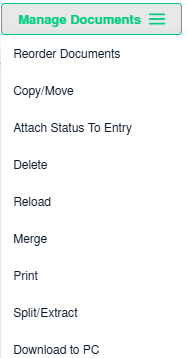 |