
Table of Contents:
How do I view the document in another display format?
How do I reorder documents?
How do I attach documents to the Current Status?
How do I copy a document?
How do I copy the document to the Other Group?
How do I move a document?
How do I delete documents?
How do I merge documents?
How do I download split/Extract documents?
How do I set documents to Download to PC?
How do I view an Audit Trail of a document?
How do I export an Audit Trail of a document?
How do I view the document in another display format?
| 1. Login to your account using the username and password provided. | |
| 2. Hover over the Fleet Management tab. Hover over the Document Management Centre tab and Click on the Manage Internal Documentation tab. | 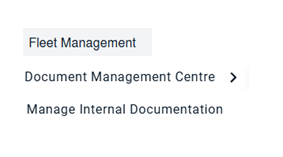 |
| 3. Select Client and other related details. |  |
| 4. Click on the VIEW button. It will open the Manage Internal Documentation page in a new window. |  |
| 5. Click on the view icon of the row to view inner documents. It will open a new window. | 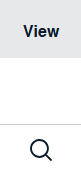 |
| 6. At the top right-hand corner of the page, you will see an icon of display formats. | 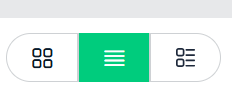 |
| 7. Select any as per your requirement. | 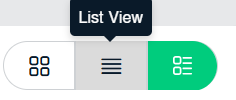 |
How do I reorder documents?
| 1. Login to your account using the username and password provided. | |
| 2. Hover over the Fleet Management tab. Hover over the Document Management Centre tab and Click on the Manage Internal Documentation tab. | |
| 3. Select Client and other related details. | |
| 4. Click on the VIEW button. It will open the Manage Internal Documentation page in a new window. | |
| 5. Click on the view icon of the row to view inner documents. It will open a new window. | |
| 6. Hover over the Manage Documents drop-down and Click on Reorder Documents option. It will open a new Window. | 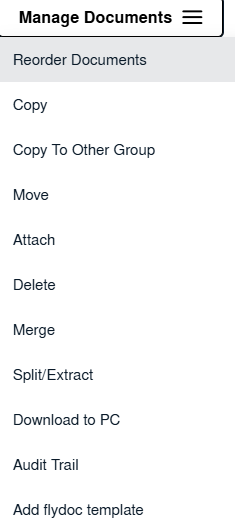 |
| 7. Go to the grid and drag the reorder icon to reorder your row upward/downward. |  |
| 8. Click on Save Button. |  |
How do I attach documents to the Current Status?
| 1. Login to your account using the username and password provided. | |
| 2. Hover over the Fleet Management tab. Hover over the Document Management Centre tab and Click on the Manage Internal Documentation tab. | |
| 3. Select Client and other related details. | |
| 4. Click on the VIEW button. It will open the Manage Internal Documentation page in a new window. | |
| 5. Click on the view icon of the row to view inner documents. It will open a new window. | |
| 6. Select the documents that you want to attach. |  |
| 7. Hover over the Manage Documents drop-down and Click on Attach option. It will open a new window. | 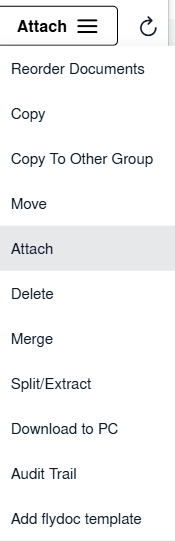 |
| 8. Go to Attach and Select Client, Attach Type and other relevant details. | 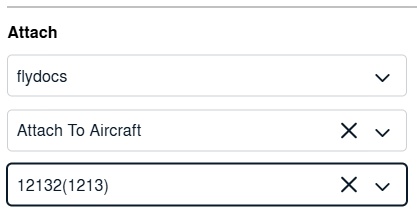 |
| 9. Click on the ATTACH button. |  |
How do I copy a document?
| 1. Login to your account using the username and password provided. | |
| 2. Hover over the Fleet Management tab. Hover over the Document Management Centre tab and Click on the Manage Internal Documentation tab. | |
| 3. Select Client and other related details. | |
| 4. Click on the VIEW button. It will open the Manage Internal Documentation page in a new window. | |
| 5. Click on the view icon of the row to view inner documents. It will open a new window. | |
| 6. Select the documents that you want to copy. | |
| 7. Hover over the Manage Documents drop-down and Click on Copy option. It will open a new window. | 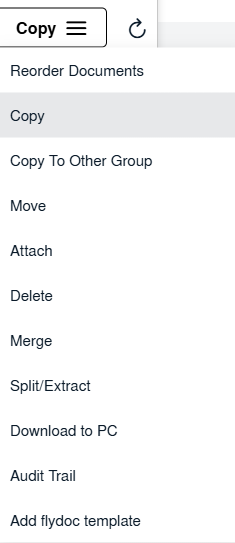 |
| 8. Filter the fields, where you want to copy the documents. | 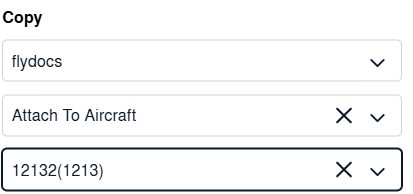 |
| 9. Click on the COPY button. |  |
How do I copy the document to the Other Group?
| 1. Login to your account using the username and password provided. | |
| 2. Hover over the Fleet Management tab. Hover over the Document Management Centre tab and Click on the Manage Internal Documentation tab. | |
| 3. Select Client and other related details. | |
| 4. Click on the VIEW button. It will open the Manage Internal Documentation page in a new window. | |
| 5. Click on the view icon of the row to view inner documents. It will open a new window. | |
| 6. Select the documents that you want to copy. | |
| 7. Hover over the Manage Documents drop down and Click on Copy To Other Group option. It will open a new window. | 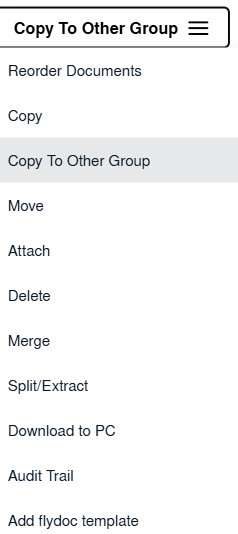 |
| 8. Filter the fields, where you want to copy the documents. | 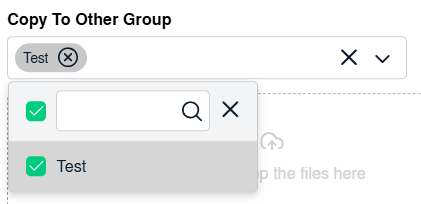 |
| 9. Click on the COPY button. | |
How do I move a document?
| 1. Login to your account using the username and password provided. | |
| 2. Hover over the Fleet Management tab. Hover over the Document Management Centre tab and Click on the Manage Internal Documentation tab. | |
| 3. Select Client and other related details. | |
| 4. Click on the VIEW button. It will open the Manage Internal Documentation page in a new window. | |
| 5. Click on the view icon of the row to view inner documents. It will open a new window. | |
| 6. Select the documents that you want to move. | |
| 7. Hover over the Manage Documents drop down and Click on Move option. It will open a new window. | 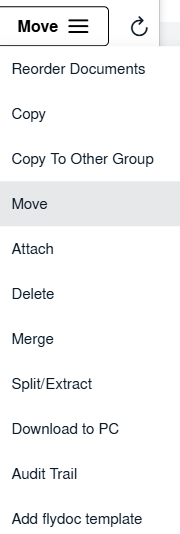 |
| 8. Filter the fields, where you want to move the documents. | 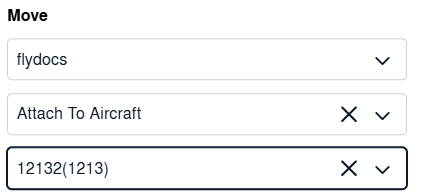 |
| 9. Click on the Move button. |  |
How do I delete documents?
| 1. Login to your account using the username and password provided. | |
| 2. Hover over the Fleet Management tab. Hover over the Document Management Centre tab and Click on the Manage Internal Documentation tab. | |
| 3. Select Client and other related details. | |
| 4. Click on the VIEW button. It will open the Manage Internal Documentation page in a new window. | |
| 5. Click on the view icon of the row to view inner documents. It will open a new window. | |
| 6. Select the documents that you want to Delete. | |
| 7. Hover to Manage Documents button drop down and Click on Delete option. | 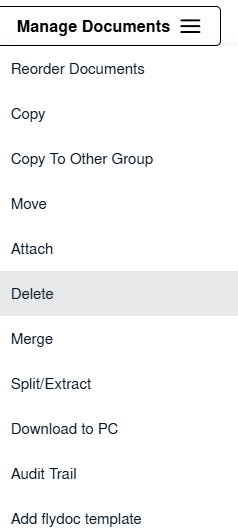 |
| 8. Pop up appears once after click to Delete option. | 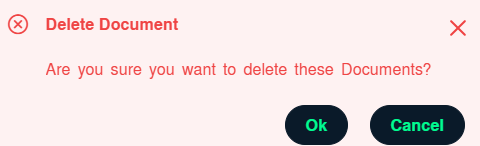 |
How do I merge documents?
| 1. Login to your account using the username and password provided. | |
| 2. Hover over the Fleet Management tab. Hover over the Document Management Centre tab and Click on the Manage Internal Documentation tab. | |
| 3. Select Client and other related details. | |
| 4. Click on the VIEW button. It will open the Manage Internal Documentation page in a new window. | |
| 5. Click on the view icon of the row to view inner documents. It will open a new window. | |
| 6. Select the documents that you want to Merge. | |
| 7. Hover to Manage Documents drop down and Click on Merge option. It will open new window. | 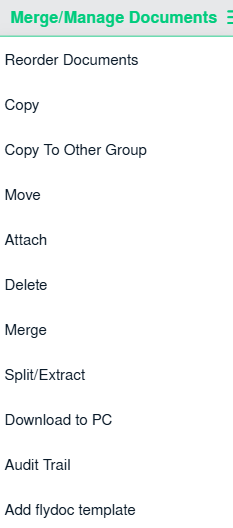 |
| 8. Give file name to merged document. | 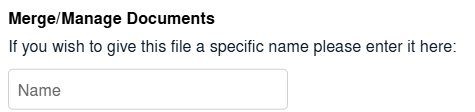 |
| 9. Click on the Move button. |  |
How do I download Split/Extract documents?
| 1. Login to your account using the username and password provided. | |
| 2. Hover over the Fleet Management tab. Hover over the Document Management Centre tab and Click on the Manage Internal Documentation tab. | |
| 3. Select Client and other related details. | |
| 4. Click on the VIEW button. It will open the Manage Internal Documentation page in a new window. | |
| 5. Click on the view icon of the row to view inner documents. It will open a new window. | |
| 6. Select the documents that you want to Split/Extract. | |
| 7. Hover to Manage Documents dropdown and Click on the Split/Extract option. It will open new window | 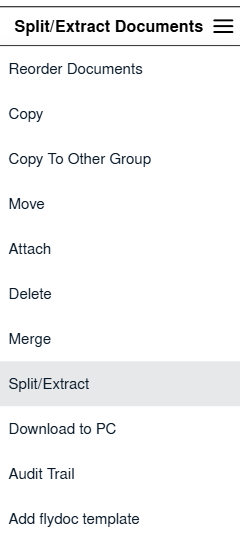 |
| 8. Give numbers to pages | 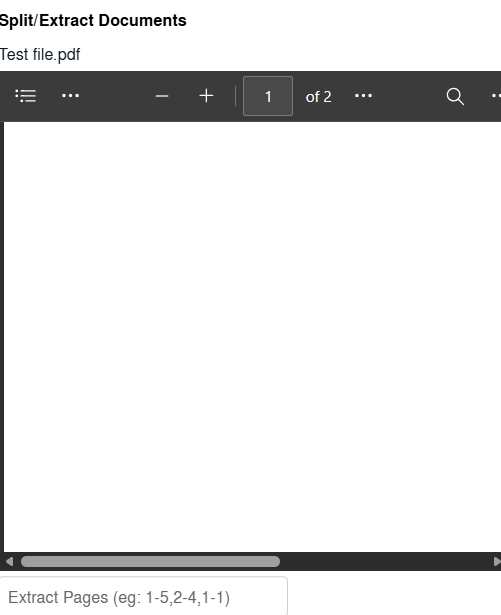 |
| 9. Click on Split App Pages/ Extract Pages. |  |
How do I set documents to Download to PC?
| 1. Login to your account using the username and password provided. | |
| 2. Hover over the Fleet Management tab. Hover over the Document Management Centre tab and Click on the Manage Internal Documentation tab. | |
| 3. Select Client and other related details. | |
| 4. Click on the VIEW button. It will open the Manage Internal Documentation page in a new window. | |
| 5. Click on the view icon of the row to view inner documents. It will open a new window. | |
| 6. Select the documents that you want to download. | |
| 7. Hover over the Manage Documents drop down and Click on Set download to pc option. It will open new window. | 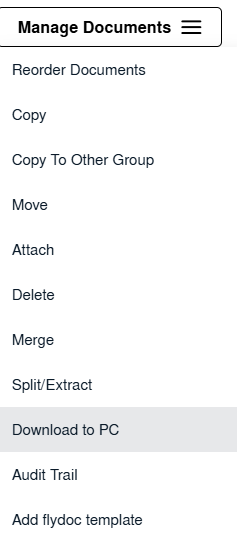 |
| 8. It will download to your pc | 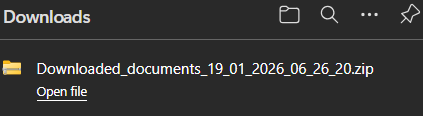 |
How do I view an Audit Trail of a document?
| 1. Login to your account using the username and password provided. | |
| 2. Hover over the Fleet Management tab. Hover over the Document Management Centre tab and Click on the Manage Internal Documentation tab. | |
| 3. Select Client and other related details. | |
| 4. Click on the VIEW button. It will open the Manage Internal Documentation page in a new window. | |
| 5. Click on the view icon of the row to view inner documents. It will open a new window. | |
| 6. Hover over Manage Documents dropdown and Click on the Audit Trail option. It will open a new window | 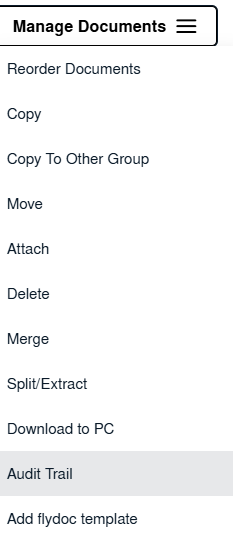 |
| 7. Select filter types to filter Audit Trail Report like filter by keyword, filter by operations, filter by date etc. Note: User should not be able to select date range more than 90 days. |
 |
| 8. Click on FILTER button to filter Audit Trail report. It will show filtered data into grid. |  |
How do I export an Audit Trail of a document?
| 1. Login to your account using the username and password provided. | |
| 2. Hover over the Fleet Management tab. Hover over the Document Management Centre tab and Click on the Manage Internal Documentation tab. | |
| 3. Select Client and other related details. | |
| 4. Click on the VIEW button. It will open the Manage Internal Documentation page in a new window. | |
| 5. Click on the view icon of the row to view inner documents. It will open a new window. | |
| 6. Hover over Manage Documents dropdown and Click on the Audit Trail option. It will open a new window | |
| 7. Select filter types to filter Audit Trail Report like filter by keyword, filter by operations, filter by date etc. Note: User should not be able to select date range more than 90 days. |
 |
| 8. Click on FILTER button to filter Audit Trail report. It will show filtered data into grid. | |
| 9. Click on Export option |  |