
How do I manage documents of Maintenance History in APU Centre?
|
How do I view the document in another display format? |
|
| 1. Login to your account using the username and password provided. | 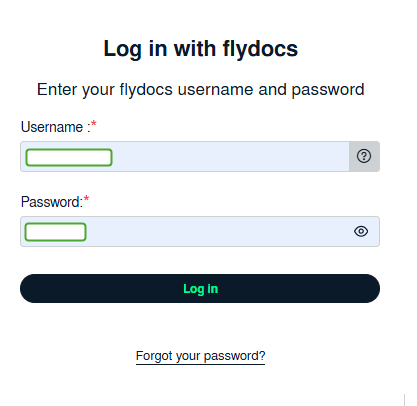 |
| 2. Hover over the Fleet Management tab and Click on APU Centre Tab. | 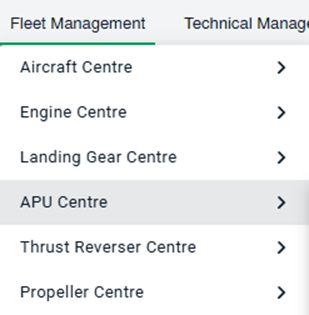 |
| 3. Scroll down and select record you wish to view. |  |
| 4. Hover over the Maintenance Status button and Click on the APU History button. It will open new window. NOTE: The Maintenance Status button will become active once an APU record has been selected. |
 |
| 5. Click on the Open Folder Icon. It will open new Window. |  |
|
6. At the top left hand corner of the page you will see a header labelled View. Click on any respective view, the document view will get change. Note: y default the view will be Thumbnail vie |
|


|
How do I search for a document name? |
|
| 1. Login to your account using the username and password provided. | |
| 2. Hover over the Fleet Management tab and Click on APU Centre Tab. | |
| 3. Scroll down and select record you wish to view. | |
|
4. Hover over the Maintenance Status button and Click on the APU History button. It will open new window. NOTE: The Maintenance Status button will become active once an APU record has been selected. |
|
| 5. Click on the Open Folder Icon. It will open new Window. | |
| 6. At the top of the page there is a header labelled Keyword Search with a text box to the right. | 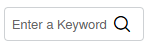 |
|
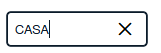
7. In this text box you can enter the name of the document to be located e.g CASA. Once you enter the keyword, all the document which contain the keyword will be visible. |
 |
|
How do I reorder documents? |
|
| 1. Login to your account using the username and password provided. | |
| 2. Hover over the Fleet Management tab and Click on APU Centre Tab. | |
| 3. Scroll down and select record you wish to view. | |
| 4. Hover over the Maintenance Status button and Click on the APU History button. It will open new window. NOTE: The Maintenance Status button will become active once an APU record has been selected. |
|
| 5. Click on the Open Folder Icon. It will open new Window. | |
|
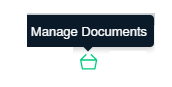
6. Click on the Manage Documents Icon. |
 |
| 7. Click on Reorder Document. | 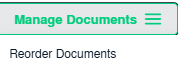 |
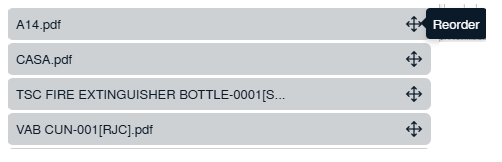
8. You can reorder the document using the icon  . . |
 |
| 9. Click on Save Button |  |
|
How do I copy a document? |
|
| 1. Login to your account using the username and password provided. | |
| 2. Hover over the Fleet Management tab and Click on APU Centre Tab. | |
| 3. Scroll down and select record you wish to view. | |
| 4. Hover over the Maintenance Status button and Click on the APU History button. It will open new window. NOTE: The Maintenance Status button will become active once an APU record has been selected. |
|
| 5. Click on the Open Folder Icon. It will open new Window. | |
| 6. In the new window, select documents that you want to copy. | 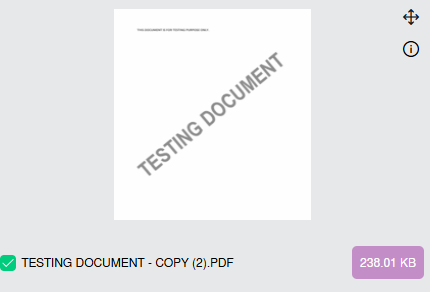 |
| 7. Click on the Manage Documents icon. | |
| 8. Click on the COPY button. | 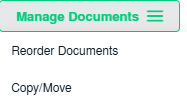 |
| 9. Fill the required details where you want to copy the document. | 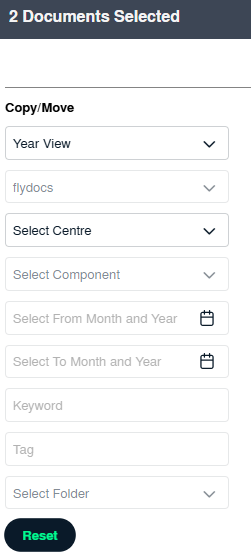 |
| 10. Click on copy button, the file will get copied successfully. |  |
|
How do I move documents? |
|
| 1. Login to your account using the username and password provided. | |
| 2. Hover over the Fleet Management tab and Click on APU Centre Tab. | |
| 3. Scroll down and select record you wish to view. | |
| 4. Hover over the Maintenance Status button and Click on the APU History button. It will open new window. NOTE: The Maintenance Status button will become active once an APU record has been selected. |
|
| 5. Click on the Open Folder Icon. It will open new Window. | |
| 6. In the new window, select documents that you want to move. | |
| 7. Click on the Manage Documents icon. | |
| 8. Click on the Move button. | |
| 9. Click on MOVE button. | |
| 10. Click on Move button, the file will get moved successfully.. |  |
|
How do I delete documents? |
|
| 1. Login to your account using the username and password provided. | |
| 2. Hover over the Fleet Management tab and Click on APU Centre Tab. | |
| 3. Scroll down and select record you wish to view. | |
| 4. Hover over the Maintenance Status button and Click on the APU History button. It will open new window. NOTE: The Maintenance Status button will become active once an APU record has been selected. |
|
| 5. Click on the Open Folder Icon. It will open new Window. | |
| 6. In the new window, select documents that you want to delete. | |
| 7.Click on the Manage Documents icon. | |
| 8. Click on the Delete button. | 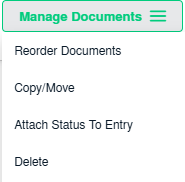 |
|
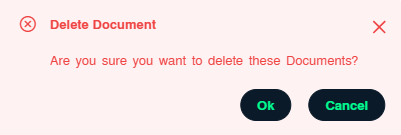
9. You will get a pop up "Are you sure you want to delete these Documents?" Click on OK the document will get deleted successfully. |
 |
| How do I reload documents? | |
| 1. Login to your account using the username and password provided. | |
| 2. Hover over the Fleet Management tab and Click on APU Centre Tab. | |
| 3. Scroll down and select record you wish to view. | |
|
4. Hover over the Maintenance Status button and Click on the APU History button. It will open new window. NOTE: The Maintenance Status button will become active once an APU record has been selected. |
|
| 5. Click on the Open Folder Icon. It will open new Window. | |
| 6. To Reload Documents, first select Ghost Document : show all documents. Then scroll down to the Documents to be selected and tick the box below the thumbnails. | 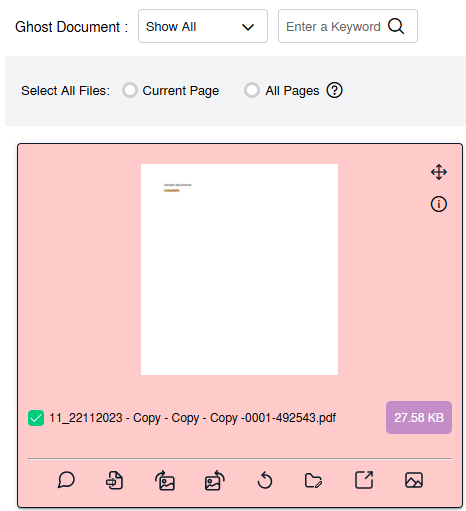 |
| 7. Click on the Manage Documents icon. | |
| 8. Click on Reload option. | 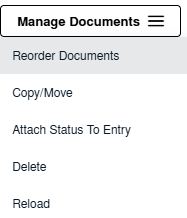 |
|
9. You will get a pop up "Are you sure you want to reload this Document?" Click on OK the document will get reloaded successfully. |
 |
|
How do I merge documents? |
|
| 1. Login to your account using the username and password provided. | |
| 2. Hover over the Fleet Management tab and Click on APU Centre Tab. | |
| 3. Scroll down and select record you wish to view. | |
|
4. Hover over the Maintenance Status button and Click on the APU History button. It will open new window. NOTE: The Maintenance Status button will become active once an APU record has been selected. |
|
| 5. Click on the Open Folder Icon. It will open new Window. | |
| 6. To Merge two or more Documents scroll down to the Document to be selected and tick the box below the thumbnail. | 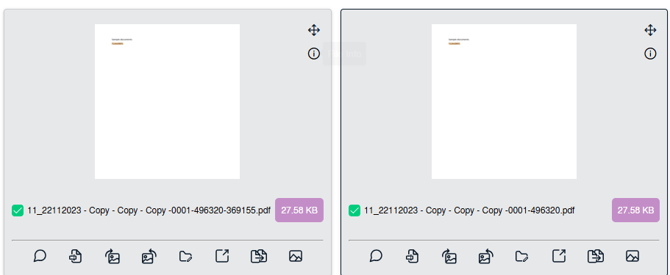 |
| 7. Click on the Manage Documents icon.. | |
| 8. Click on the Merge option. | 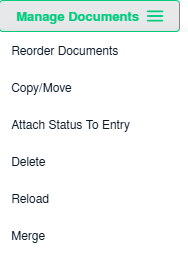 |
| 9. Enter file Name that you want to give to document. | 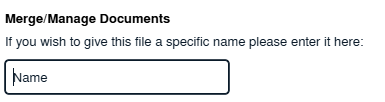 |
| 10. Click on the Merge option. |  |
|
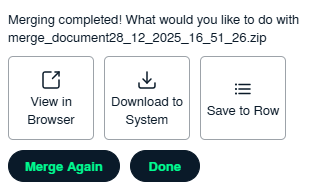
11. After selecting merge option you will get three option. 1. View in Browser 2. Download to system 3. Save to Row Select the required option and click on Save. |
 |
|
How do I download split documents to PC? |
|
| 1. Login to your account using the username and password provided. | |
| 2. Hover over the Fleet Management tab and Click on APU Centre Tab. | |
| 3. Scroll down and select record you wish to view. | |
| 4. Hover over the Maintenance Status button and Click on the APU History button. It will open new window. NOTE: The Maintenance Status button will become active once an APU record has been selected. |
|
| 5. Click on the Open Folder Icon. It will open new Window. | |
| 6. Select document that you want to Split. | |
| 7. Click on the Manage Documents icon. | |
| 8. Click on Split/ Extract option. | 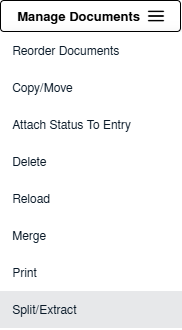 |
|
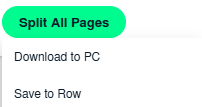
9. Click on Split All Pages, it will give two option. 1. Download to PC 2. Save to Row Click on the required option |
 |
|
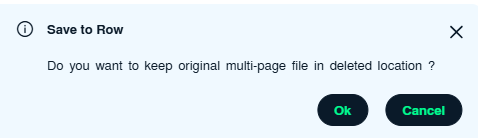
10. If you click on Save to Row, it will give you pop up " Do you want to keep original multi-page file in deleted location ? " Click on OK
|
 |
|
How do I extract documents? |
|
| 1. Login to your account using the username and password provided. | |
| 2. Hover over the Fleet Management tab and Click on APU Centre Tab. | |
| 3. Scroll down and select record you wish to view. | |
| 4. Hover over the Maintenance Status button and Click on the APU History button. It will open new window. NOTE: The Maintenance Status button will become active once an APU record has been selected. |
|
| 5. Click on the Open Folder Icon. It will open new Window. | |
| 6. Select document that you want to extract. | |
| 7. Click on the Manage Documents icon. | |
| 8. Click on Split option | |
| 9. Add the numeric value and then click on Extract Pages. | 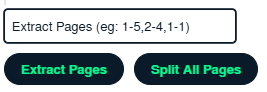 |
| How do I download document to PC? | |
| 1. Login to your account using the username and password provided. | |
| 2. Hover over the Fleet Management tab and Click on APU Centre Tab. | |
| 3. Scroll down and select record you wish to view. | |
| 4. Hover over the Maintenance Status button and Click on the APU History button. It will open new window. NOTE: The Maintenance Status button will become active once an APU record has been selected. |
|
| 5. Click on the Open Folder Icon. It will open new Window. | |
| 6. Select document that you want to download to PC. | |
| 7. Click on the Manage Documents icon. | |
| 8. Click on Download to PC. | 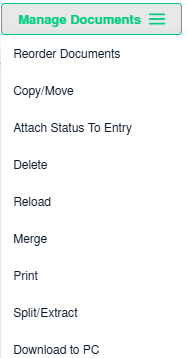 |
|
How do I attach document to current status? |
|
| 1. Login to your account using the username and password provided. | |
| 2. Hover over the Fleet Management tab and Click on APU Centre Tab. | |
| 3. Scroll down and select record you wish to view. | |
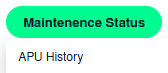
| 4. Hover over the Maintenance Status button and Click on the APU History button. It will open new window. NOTE: The Maintenance Status button will become active once an APU record has been selected. |
 |
| 5. Click on the Open Folder Icon. It will open new Window. | |
| 6. Select document that you want to archive. | |
| 7. Click on the Manage Documents icon. | |
| 8. Click on Attach status to Entry | 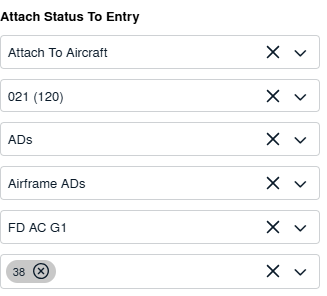 |
| 9. Select the required information | 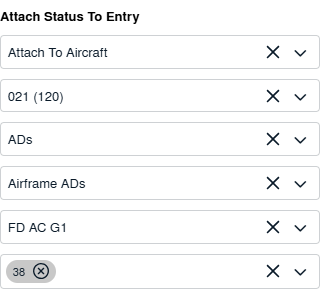 |
| 10. Click on Attach |  |
|
How do I view an Audit Trail of a document? |
|
| 1. Login to your account using the username and password provided. | |
| 2. Hover over the Fleet Management tab and Click on APU Centre Tab. | |
| 3. Scroll down and select record you wish to view. | |
| 4. Hover over the Maintenance Status button and Click on the APU History button. It will open new window. NOTE: The Maintenance Status button will become active once an APU record has been selected. |
|
| 5. Click on the Open Folder Icon. It will open new Window. | |
| 6. Click on the Manage Documents icon. | |
| 7. Click on Audit trial. | 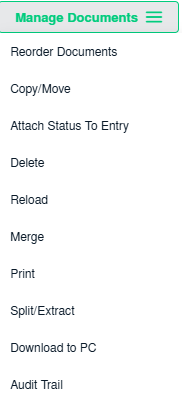 |
| 8. Select filter types to filter Audit Trail Report. Like filter by keyword, filter by operations, filter by date etc. |  |
| 9. Click on FILTER button to filter Audit Trail report. It will show filtered data into grid. |  |
|
How do I export an Audit Trail of a document? |
|
| 1. Login to your account using the username and password provided. | |
| 2. Hover over the Fleet Management tab and Click on APU Centre Tab. | |
| 3. Scroll down and select record you wish to view. | |
| 4. Hover over the Maintenance Status button and Click on the APU History button. It will open new window. NOTE: The Maintenance Status button will become active once an APU record has been selected. |
|
| 5. Click on the Open Folder Icon. It will open new Window. | |
| 6. Click on the Manage Documents icon. | |
| 7. Click on Audit trial. | |
| 8. Select filter types to filter Audit Trail Report. Like filter by keyword, filter by operations, filter by date etc. | |
| 9. Click on FILTER button to filter Audit Trail report. It will show filtered data into grid. | |
| 10. Click on EXPORT button. |
|

Note:- If you do not see this option appear it is due to access restrictions for your user account. please contact an administrator.