
Table of Contents:
How do I hide all documents?
How do I show all documents?
How do I show all deleted documents?
How do I show all archived documents?
How do I hide all documents?
| 1. Login to your account using the username and password provided. | |
| 2. Click on the Fleet Management tab then Hover over the Document Management Centre tab and Click on Manage Master Documentation tab. |  |
| 3. Select Client and Other relevant details. It will load data into grid. |  |
| 4. Go to folder that you want to open. In that row, Go to Open Folder Column and Click on Open Folder icon. It will open that folder in a new window. | 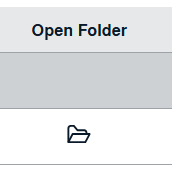 |
| 5. Go to Ghost document list and Select Hide All option. It will hide deleted and archived documents and show you rest of the documents. | 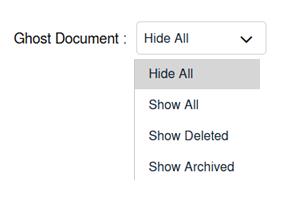 |
How do I show all documents?
| 1. Login to your account using the username and password provided. | |
| 2. Click on the Fleet Management tab then Hover over the Document Management Centre tab and Click on Manage Master Documentation tab. | |
| 3. Select Client and Other relevant details. It will load data into grid. | |
| 4. Go to folder that you want to open. In that row, Go to Open Folder Column and Click on Open Folder icon. It will open that folder in a new window. | |
| 5. Go to Ghost document list and Select Show All option. It will show you all documents. | 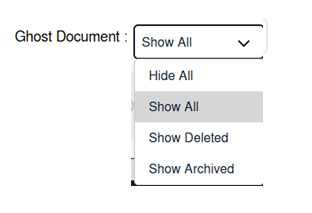 |
How do I show all deleted documents?
| 1. Login to your account using the username and password provided. | |
| 2. Click on the Fleet Management tab then Hover over the Document Management Centre tab and Click on Manage Master Documentation tab. | |
| 3. Select Client and Other relevant details. It will load data into grid. | |
| 4. Go to folder that you want to open. In that row, Go to Open Folder Column and Click on Open Folder icon. It will open that folder in a new window. | |
| 5. Go to Ghost document list and Select Show Deleted option. It will show you all deleted documents. | 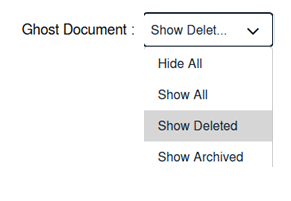 |
How do I show all archived documents?
| 1. Login to your account using the username and password provided. | |
| 2. Click on the Fleet Management tab then Hover over the Document Management Centre tab and Click on Manage Master Documentation tab. | |
| 3. Select Client and Other relevant details. It will load data into grid. | |
| 4. Go to folder that you want to open. In that row, Go to Open Folder Column and Click on Open Folder icon. It will open that folder in a new window. | |
| 5. Go to Ghost document list and Select Show Archived option. It will show you all archived documents. | 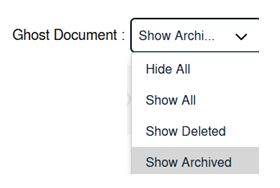 |