
How do I manage Internal Notes from Inbox?
| 1. Login to your account using the username and password provided. | |
| 2. Click on the Home tab. |  |
| 3. Go to the Internal Notes section. Click on the text 'View'. It will open Internal Notes in new window. |  |
| 4. Select the tab to check notes assigned to you. |  |
| 5. Select the asset from the grid. |  |
| 6. Move your cursor over the Current Status button and select the dropdown option the note has been added within (only areas with notes assigned to your account will appear). | 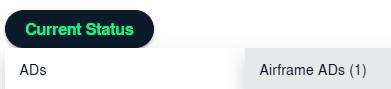 |
| 7. It will open all received notes for this area in new window. Click on View icon. |  |
| 8. It will open new window. Go to Internal Notes section where you can find notes assigned to you. |  |
| 9. Review the received note and enter your comment and Click on SAVE button in the notes area to reply. |  |
| 10. We have various options like Asset View/ Row view |   |
| 11 Tick the BOX and Click on the CLEAR MESSAGES to clear individual messages |  |
| 12. Click on the CLEAR ALL MESSAGES button to clear the Messages. |  |
| 13. Click on AUDIT TRAIL button. It will open Audit Trail in a new window. |  |