
How do I manage Transfer Notes in Aircraft Centre?
| How do I transfer FLYdocs /Internal/ Clients Notes? | |
| 1. Login to your account using the username and password provided. | 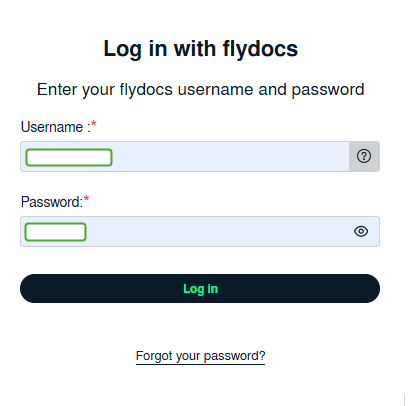 |
| 2. Hover over the Fleet Management tab and Click on Aircraft Centre Tab. | 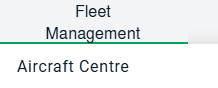 |
| 3. Select the record from the grid. | 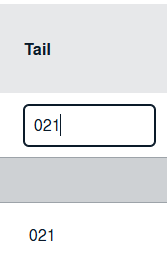 |
| 4. Hover over the Current Status dropdown and Select any tab from the dropdown. It will open new window. | 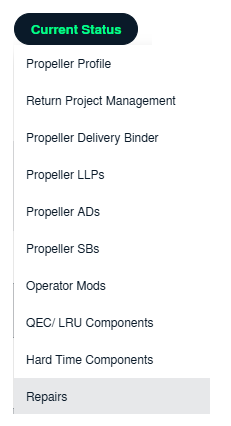 |
| 5. Hover over the CONTROLS dropdown and Click on the Transfer Notes option. It will open a new window. | 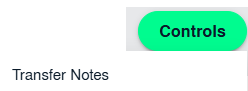 |
| 6. Select flydocs / Internal/ Clients Notes from the list. | 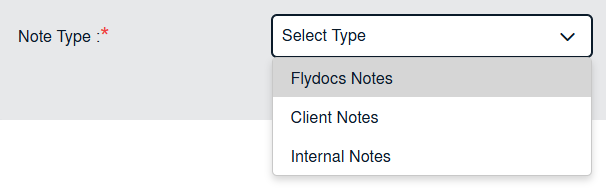 |
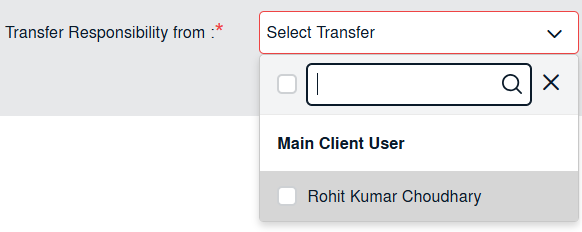
| 7. Select User from the list from whom you want to transfer notes. Note : 1. Y ou can select any number of users from whom you want to transfer notes. 2. Once User/s selected, the grid will get loaded with the rows where the notes are assigned to a particular user. |
 |
| 8. Go to Assign Responsibility To section and Select FLYdocs Users from the list. Note: You can't assign FLYdocs Notes to Main Client Users and Clients Users. |
 |
| 9. You can select any number of rows where the notes are assigned to the selected user. | 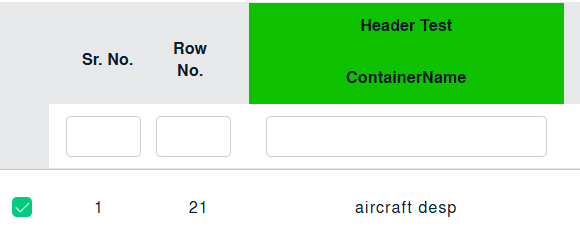 |
| 10. Click on the TRANSFER NOTES button. |  |
| 11. It will show you Popup window. |  |