
| 1. Login to your account using the username and password provided. | |
| 2. Hover over the Fleet Management tab and Click on the Aircraft Centre Tab. | 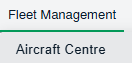 |
| 3. Scroll down and select the record you wish to view. |  |
|
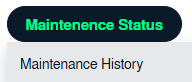
4. Hover over the Maintenance Status button and Click on the Maintenance History button. It will open new window. NOTE: The Maintenance Status button will become active once an aircraft record has been selected. |
 |
| 5. Go to folder where you want to search document. In that row, Go to the Search Column and Click on Search icon. It will open that folder in a new window. |  |
| 6. Go to Keyword or multiple keyword used for search particular document/documents. |  |
| 7.Set the other Search criteria. | 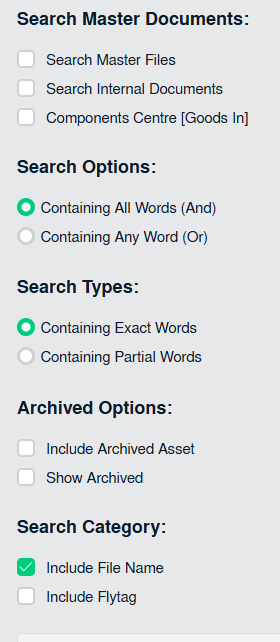 |
| 8. Click on the SEARCH button. Results will be load at the bottom of the page. |  |
| 9. Go to an document and click on the replace icon. It will open a new window. |  |
| 10. Select Upload Options. | 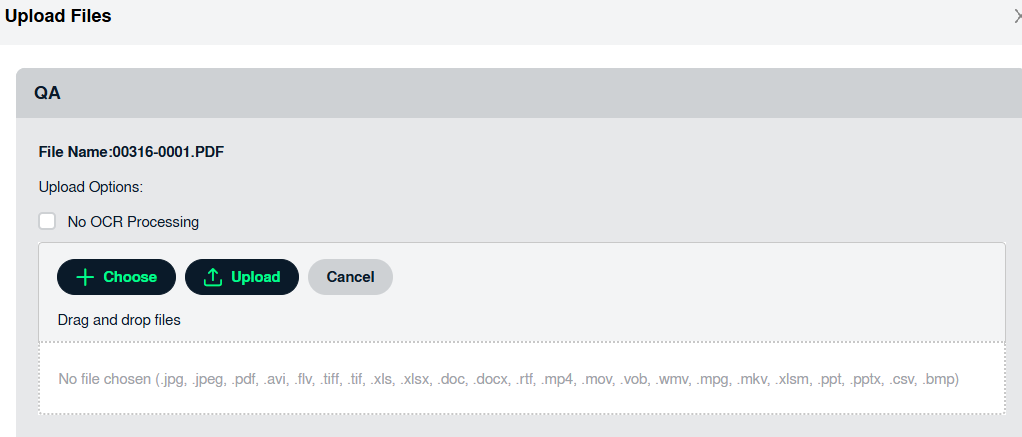 |
| 13.Click the 'UPLOAD' button. |  |