
How do I use CSV Management in Manage Internal Documentation(MID)?
| How do I upload a CSV file? | |
| 1. Login to your account using the username and password provided. | 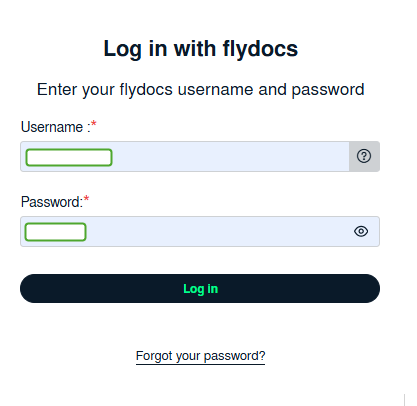 |
| 2. Hover over the Fleet Management tab. Hover Over Document management Centre tab and Select Manage Internal documentation tab. | 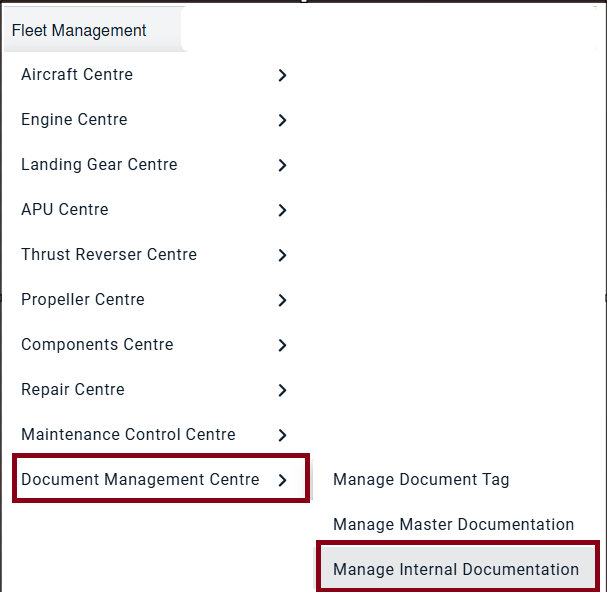 |
| 3. Select Client and Other relevant details. |  |
| 4. Click on the VIEW button. It will open a new window. |  |
| 5. Hover over the CONTROLS dropdown and Click on the CSV Management option. It will open a new window. | 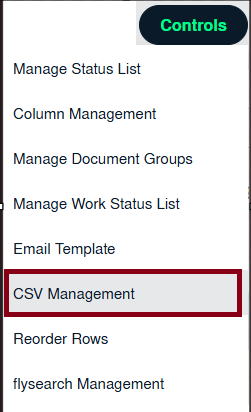 |
| 6. Select upload option |  |
| 7. Select the file to upload | 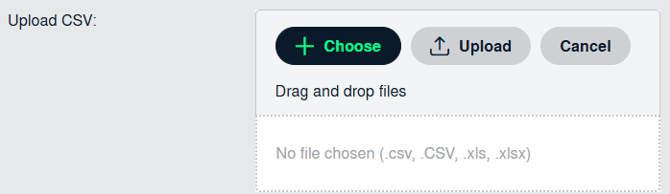 |
|
8. Click on UPLOAD button. |
 |
| 9. It will show you columns selected in the grid. Click on CONTINUE button. |  |
| How do I use the compare feature in CSV Management? | |
| 1. Login to your account using the username and password provided. | 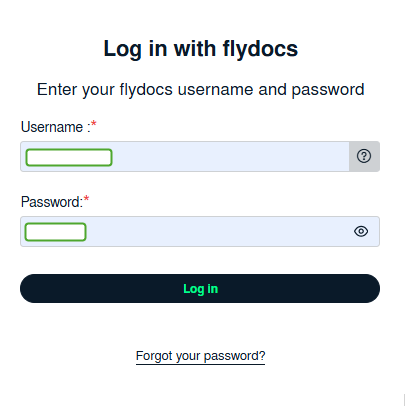 |
| 2. Hover over the Fleet Management tab. Hover Over Document management Centre tab and Select Manage Internal documentation tab. | 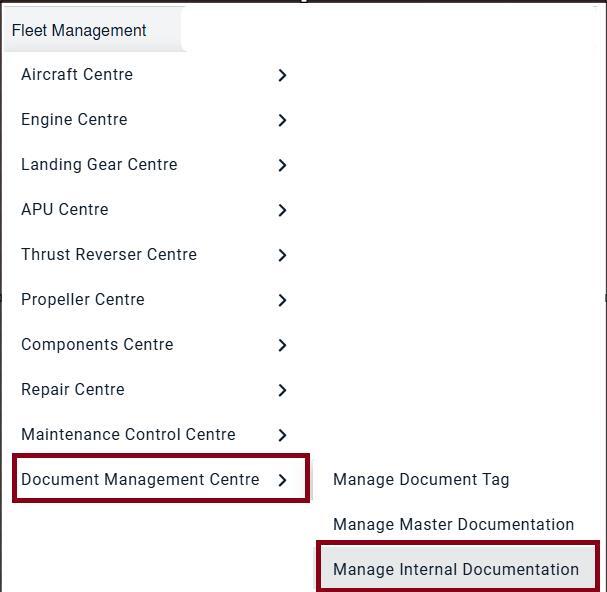 |
| 3. Select Client and Other relevant details. |  |
| 4. Click on the VIEW button. It will open a new window. |  |
| 5. Hover over the CONTROLS dropdown and Click on the CSV Management option. It will open a new window. | 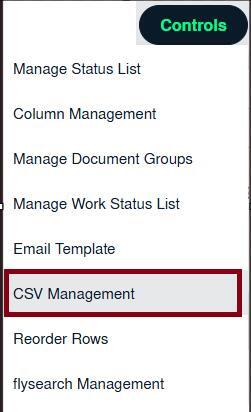 |
| 6. Select Compare option. |  |
| 7. Select Columns that you want to compare by ticking tick box. | 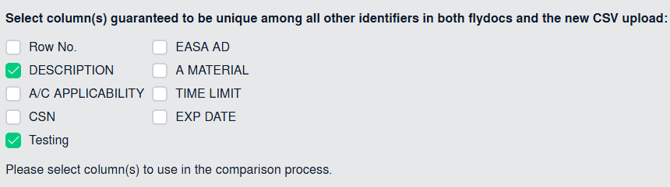 |
| 8. Select the file to upload | 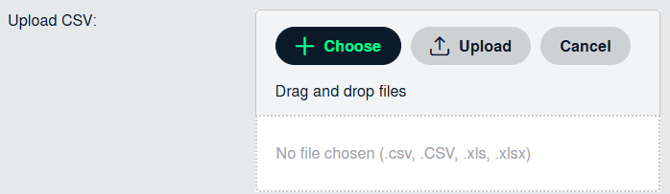 |
| 9. Click on UPLOAD button. |  |
| 10. It will show you columns selected for comparison in the grid. At the right side, Click on the CONTINUE button. Notes: If you click on PREVIEW button, it will download the compared file, so that you can check the changes. |
 |
|
11. Click on DOWNLOAD REPORT button. This Excel sheet will show you compared information. |
 |
|
How do I use delete all records in CSV management? |
|
| 1. Login to your account using the username and password provided. | 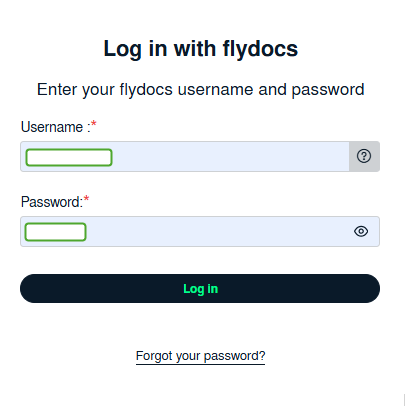 |
| 2. Hover over the Fleet Management tab. Hover Over Document management Centre tab and Select Manage Internal documentation tab. | 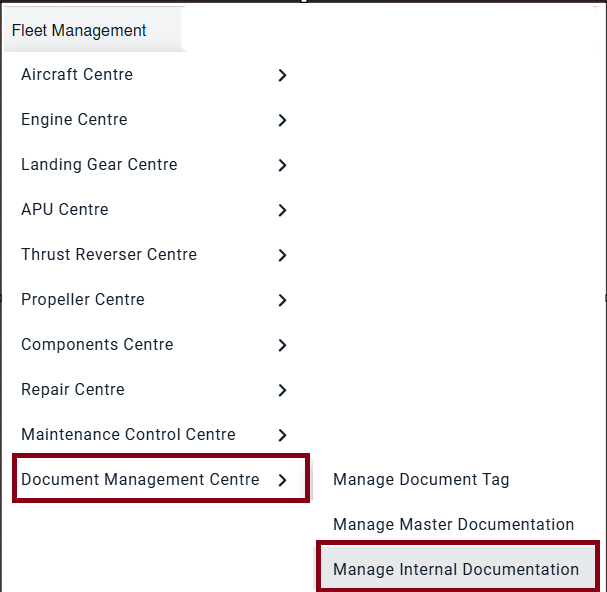 |
| 3. Select Client and Other relevant details. |  |
| 4. Click on the VIEW button. It will open a new window. |  |
| 5. Hover over the CONTROLS dropdown and Click on the CSV Management option. It will open a new window. | 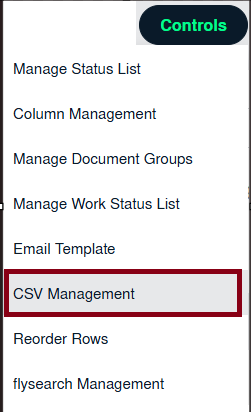 |
| 6. Select the Delete all records option. |  |
| 7. Click on DELETE button. |  |
| 8.
It will show you Pop up message. Click on OK button.
|
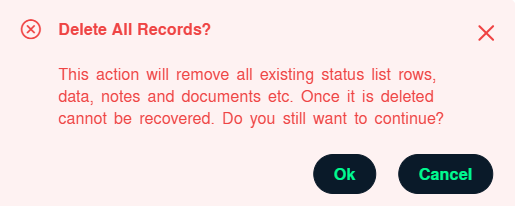 |
| 9. It will show you "Rows deleted successfully." message. |
|
How do I use upload and replace existing status list? |
|
| 1. Login to your account using the username and password provided. | 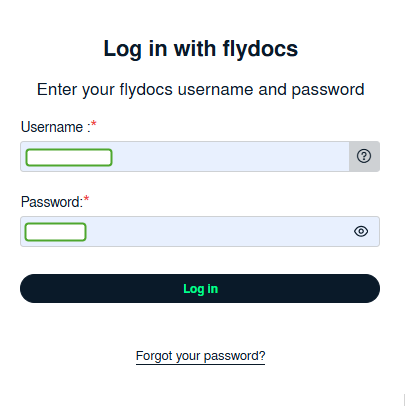 |
| 2. Hover over the Fleet Management tab. Hover Over Document management Centre tab and Select Manage Internal documentation tab. | 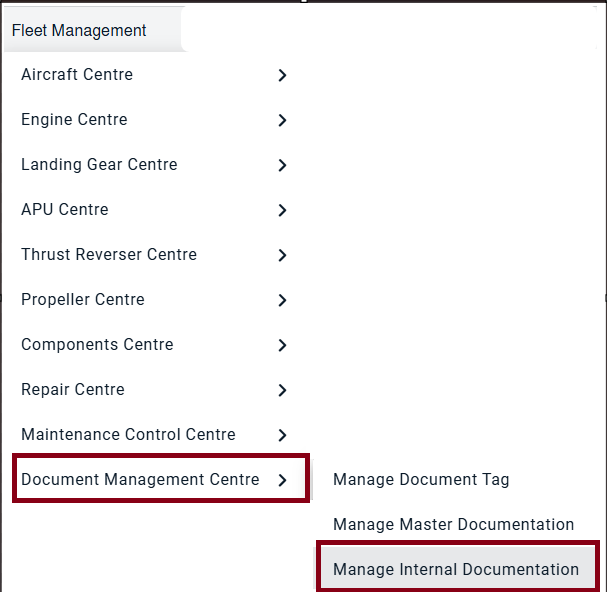 |
| 3. Select Client and Other relevant details. |  |
| 4. Click on the VIEW button. It will open a new window. |  |
| 5. Hover over the CONTROLS dropdown and Click on the CSV Management option. It will open a new window. | 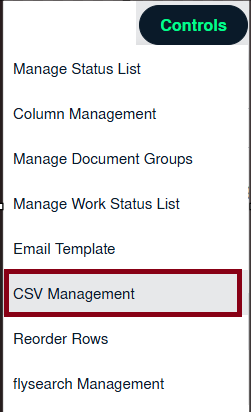 |
| 6. Select Upload and replace existing status list option. |  |
| 7. Select file that you want to upload. | 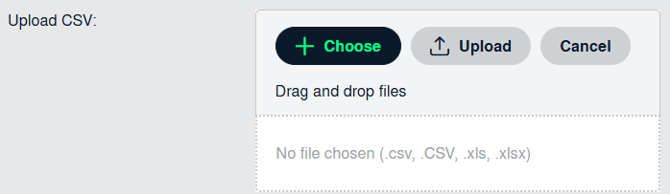 |
| 8. Click on UPLOAD button. |  |
| 9. It will show you Pop up message. Click on OK button. | 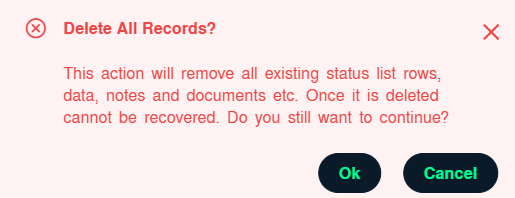 |
| 10. It will show you Pop up message. Click on OK button. |  |
| 11. It will show you columns selected for comparison in the grid. Click on CONTINUE button. |  |
|
12. Click on DOWNLOAD REPORT button. This Excel sheet will show you compared information. |
 |
|
How do I run FLYsearch? |
|
| 1. Login to your account using the username and password provided. | 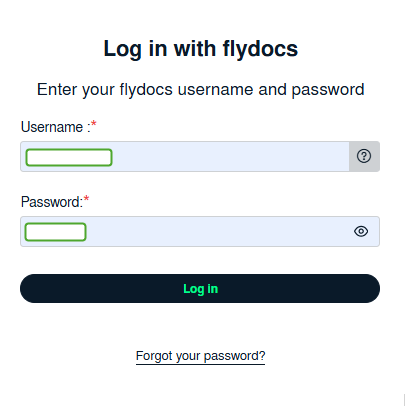 |
| 2. Hover over the Fleet Management tab. Hover Over Document management Centre tab and Select Manage Internal documentation tab. | |
| 3. Select Client and Other relevant details. | |
| 4. Click on the VIEW button. It will open a new window. | |
| 5. Hover over the CONTROLS dropdown and Click on the CSV Management option. It will open a new window. | |
| 6. Select Run FLYsearch. |  |
| 7. Select Run FLYsearch option. |  |
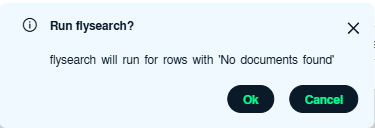
| 8.It will show you Popup window. Click on the OK button. Note: Work status comes based on the Master � FLYsearch Management. |
 |
| 9. FLYsearch will now automatically begin to find and populate documentation. An email notification will be sent once completed. |  |
|
How do I undo most recent FLYsearch? |
|
| 1. Login to your account using the username and password provided. | 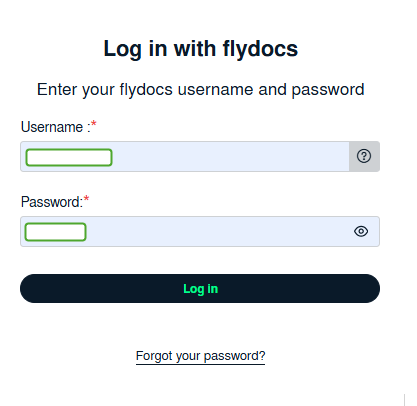 |
| 2. Hover over the Fleet Management tab. Hover Over Document management Centre tab and Select Manage Internal documentation tab. | |
| 3. Select Client and Other relevant details. | |
| 4. Click on the VIEW button. It will open a new window. | |
| 5. Hover over the CONTROLS dropdown and Click on the CSV Management option. It will open a new window. | 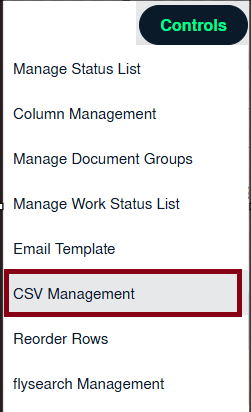 |
| 6. Select Undo FLYsearch Completed Rows option. |  |
| 7. Click on UN-DO FLYSEARCH button. |  |
| How do I preview compared CSV file? |
|
| 1. Login to your account using the username and password provided. | 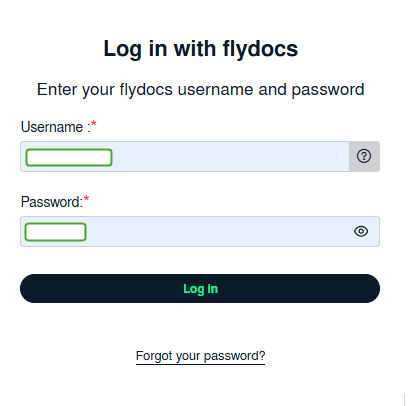 |
| 2. Hover over the Fleet Management tab. Hover Over Document management Centre tab and Select Manage Internal documentation tab. | |
| 3. Select Client and Other relevant details. | |
| 4. Click on the VIEW button. It will open a new window. | |
| 5. Hover over the CONTROLS dropdown and Click on the CSV Management option. It will open a new window. | |
| 6. Select Compare option. |  |
| 7. Select Columns that you want to compare by ticking tick box. | 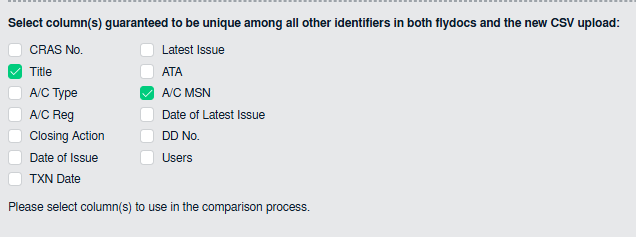 |
| 8. Select the file to upload | 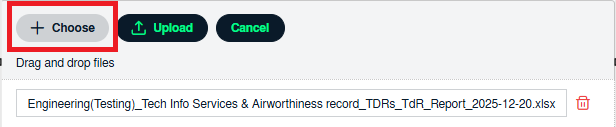 |
| 9. Click on UPLOAD button. | 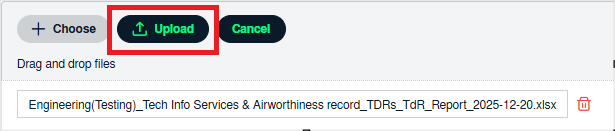 |
| 10. It will show you columns selected for comparison in the grid. At the right side, Click on CONTINUE or PREVIEW button. Notes: If you click on PREVIEW button, it will download the compared file, so that you can check the changes. |
 |
| 11. Click on DOWNLOAD REPORT button. |  |
Note:- If you do not see this option appear it is due to access restrictions for your user account. please contact an administrator.