
| 1.Login to your account using the username and password provided. | |
| 2Hover over the Fleet Management tab and click on the Engine Centre option. | 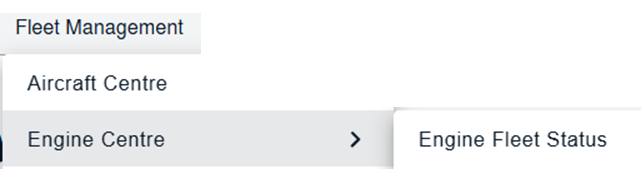 |
| 3.Select the Engine you would like to view by clicking on the row in the table. The row will become highlighted once selected. |  |
|
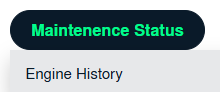
4.Hover over the Maintenance Status button and Click on the Engine History button. It will open a new window. NOTE: The Maintenance Status button will become active once an engine record has been selected. |
 |
| 5.Select Year View, BOX View, MCC View, or Delivery Bible View. Note: When entering the Maintenance History page the folders will automatically be organized into the Year View. |
 |
| 6.Click on the Open Folder Icon. It will open a new Window. |  |
| 7.Go to the 'Number Of Files Per Page' dropdown and select the number of documents that you want to load on a single page. | 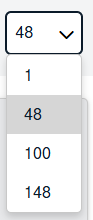 |